


The Ultimate Guide to Static Pages on Shopify: How to Build a Strong Foundation for Your Online Store?
Static pages on Shopify are fixed, non-product pages such as your Homepage, About Us, Contact Us, FAQ and policy pages. You create most of them in the Shopify admin under Online Store → Pages, and your legal policies under Settings → Policies. They build trust, help shoppers find key information and give search engines clear, indexable content about your store.
Shopify has changed the E-commerce landscape. Today, an E-commerce store owner looks no further than Shopify. With its intuitive interface, powerful integrations, and rock-solid security, Shopify has become the go-to platform for you.
But here’s the thing: While product pages and checkout flows often steal the spotlight, there’s another crucial element that shapes your brand’s credibility and customer experience: static pages.
But before that arises the most important question!
What Are Static Pages on Shopify?
Static pages on Shopify are non-product pages that provide essential information about your store, policies, and brand. Unlike dynamic pages (such as product listings or collections, which frequently change), static pages remain relatively fixed and serve as the foundation of your store’s credibility and user experience.
In Shopify’s own admin these are simply called Pages. You write the content once in the Shopify page editor, publish it at its own URL, and link it from your menus. Shopify’s help documentation gives the About Us page as a typical example.
Think of static pages as the pillars of trust and navigation, helping customers understand your business, find important details, and engage with your brand beyond just shopping.
Common Types of Static Pages on Shopify
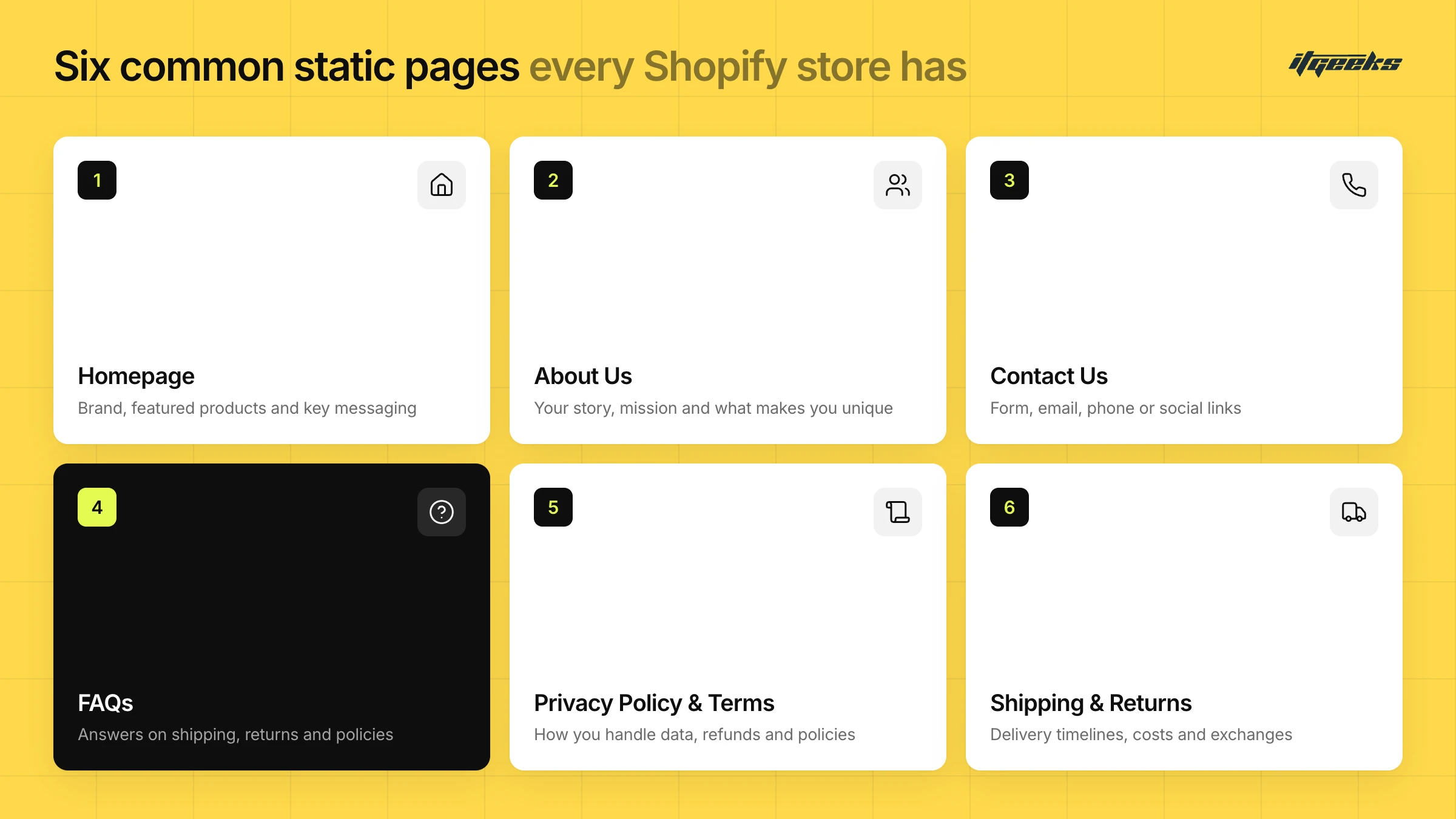
1. Homepage: The first impression matters! Your homepage showcases your brand, featured products, and key messaging.
2. About Us: Tell your brand story, mission, and what makes you unique. A great About Us page builds an emotional connection with your customers.
3.Contact Us: A must-have! It provides customers with ways to reach out, whether via form, email, phone, or social media links.
4.FAQs (Frequently Asked Questions): Reduce customer queries by answering common questions about shipping, returns, and store policies.
5.Privacy Policy & Terms of Service: Pages that explain how you handle customer data, refunds, and overall policies. Most stores need them, and Shopify can generate a starting draft for you.
6.Shipping & Returns: Keeps your customers informed about delivery timelines, costs, and return/exchange processes.
Static Pages vs. Static Sections vs. Static Site Generation on Shopify
“Static” gets used in three different ways around Shopify, and they are easy to mix up. A static page is fixed content in your store. A static section is a theme building block. Static site generation is a way of building a storefront. This section separates them.
What Are Static Content Blocks (Static Sections) on Shopify?
A static section is a theme section hard-coded into a Liquid template with the {% section %} tag. Merchants can’t remove or reorder it in the theme editor, and because only one instance exists, changing its settings changes it everywhere it appears. Shopify recommends dynamic sections in JSON templates where possible.
Don’t confuse a section with a block. According to Shopify’s theme documentation on sections, blocks are the individual content items (text, an image, a button) that merchants can add, remove and reorder inside a section. A JSON template can render up to 25 sections, and each section can hold up to 50 blocks.
How Do You Add Dynamic Content to a Static Page?
Connect metafields or metaobjects to a section or block using dynamic sources in the theme editor. For example, create an FAQ metaobject with a question field and an answer field, manage the entries under Content → Metaobjects, and show them in a theme section. Dynamic sources need a theme that supports JSON templates.
This is how a page can stay “static” in purpose (an FAQ, a size guide, a warranty page) while its content is managed as structured data instead of one long block of text. Details are in Shopify’s help documentation on metaobjects and sections and blocks.
Does Shopify Support Static Site Generation?
Not as a built-in feature of a standard Online Store theme, as far as Shopify’s documentation shows. A regular theme is a set of Liquid templates that Shopify fills with your store data when a page is displayed, so there is no build-and-deploy step. Static site generation, pre-building pages into HTML files, belongs to headless storefronts.
On a headless build, your framework decides how pages are rendered. Shopify’s Hydrogen documentation says routing, rendering and data loading are owned by your framework, and it supports React Router and Next.js templates. For most stores, ordinary Shopify Pages are enough. Consider going headless only when you have a specific front-end or performance requirement. Our guide to Shopify headless ecommerce explains the trade-offs, and our headless commerce service covers builds.
Is Shopify a Content Management System?
Shopify is an ecommerce platform with built-in content management for your storefront. In the admin you manage pages (Online Store → Pages), blog posts, navigation menus (Content → Menus) and structured content (Content → Metaobjects). That is enough for most stores. We cover the strengths and limits in why Shopify works as a CMS for small businesses.
Why Static Pages Matter to Your Shopify Store?
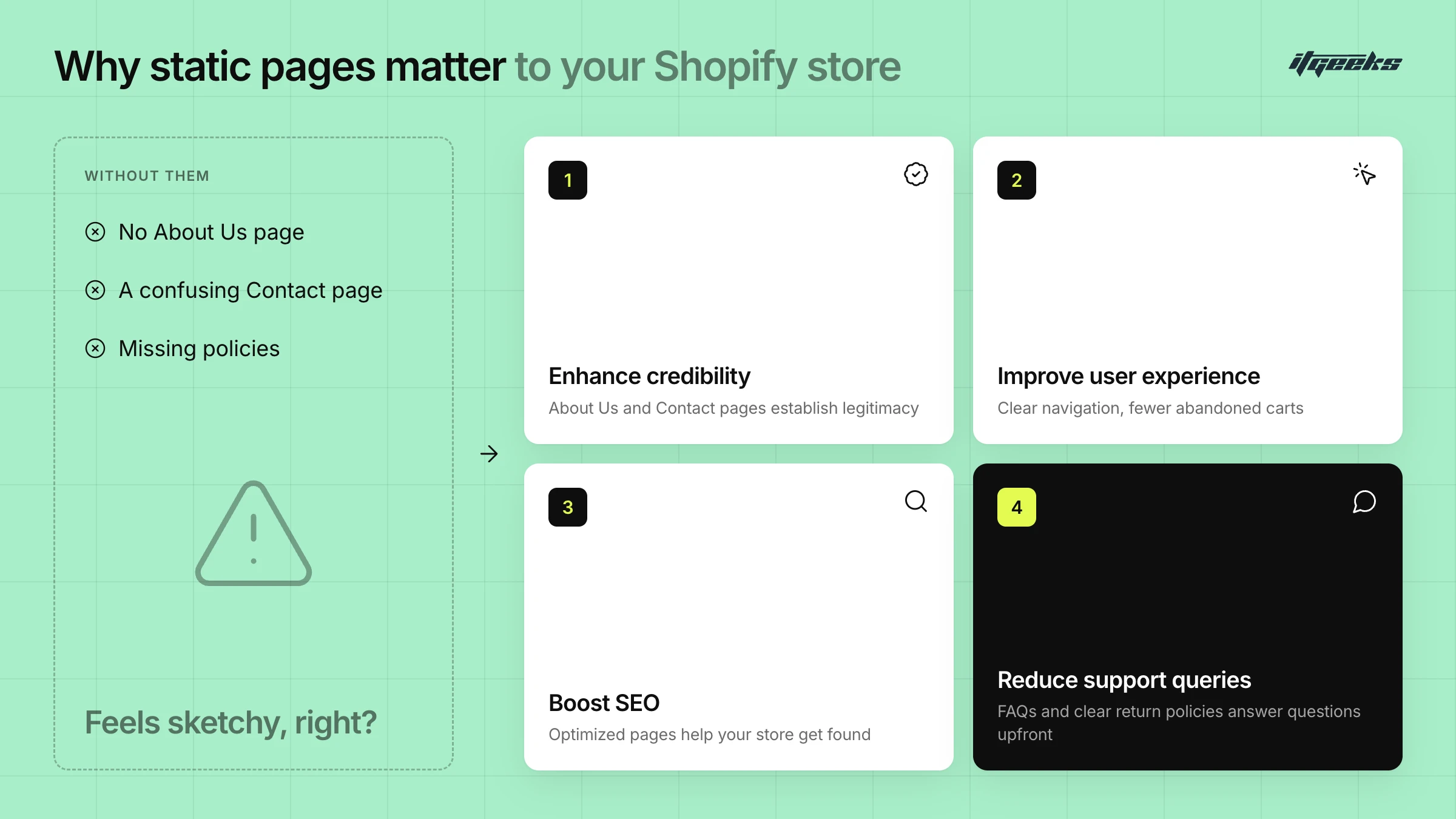
Imagine landing on an online store with no About Us page, a confusing Contact page, or missing policies. Feels sketchy, right? That’s because static pages serve as the backbone of a professional and trustworthy store. They -
1. Enhance Credibility: A store without an About Us or Contact page feels untrustworthy. Static pages establish legitimacy.
2. Improve User Experience: Clear navigation helps customers find key details, reducing frustration and abandoned carts.
3. Boost SEO: Well-optimized static pages (with the right keywords) help improve your Shopify store’s visibility on search engines.
4. Reduce Support Queries: An FAQ page or well-documented return policy minimizes unnecessary customer service requests.
These pages provide essential information, enhance customer trust, and boost SEO. Whether it's a well-crafted Homepage, About Us, Contact Us, FAQ, or Privacy Policy, each static page plays a critical role in making your store feel complete, legitimate, and user-friendly.
Think of it this way: Your store’s design and products might grab attention, but it’s the static pages that build confidence and keep customers coming back.
What are the must-have Static Pages on Shopify and why?
The essential pages for a Shopify store are a Homepage, About Us, Contact Us, an FAQ page, Privacy Policy and Terms of Service, and a Shipping & Returns policy. Together they tell shoppers who you are, how to reach you and what happens after they buy.
Your Shopify store isn’t just about showcasing products. It’s about creating an engaging and trustworthy shopping experience. That’s where static pages come in. These pages act as the backbone of your brand, guiding customers, addressing concerns, and ensuring smooth interactions.
Here are the must-have static pages for every Shopify store and website:
1. Homepage: First Impressions Matter!
Your homepage is the face of your brand. It’s where visitors land first, so it needs to be visually appealing, informative, and conversion-focused.
Highlight your brand’s value proposition.
Showcase featured products, offers, and testimonials.
Ensure easy navigation with clear CTAs (calls to action)
A well-structured homepage encourages visitors to explore your store further instead of bouncing away. For a deeper walkthrough, see our guide to designing a high-converting Shopify homepage.
2. About Us: Build Trust with Your Customers.
Customers love to connect with brands that have a story. An "About Us" page lets you share your journey, mission, and values.
Tell your brand’s story. What makes you unique?
Introduce your team or founders (people love personal connections!)
Add images, videos, or behind-the-scenes content for authenticity
The more relatable and transparent you are, the more trust you build.
3. Contact Us: Easy Communication = Happy Customers!
Make it easy for customers to reach out with questions or concerns.
Provide a contact form, email, phone number, and social media links
Include your business address (if applicable)
Set clear response time expectations to enhance customer service
A Contact Us page shows customers that you’re accessible and responsive.
4. FAQ Page: Reduce Customer Doubts Instantly!
An FAQ (Frequently Asked Questions) page helps customers find answers without contacting support.
Address common shipping, return, and product questions
Include payment methods, order tracking, and sizing guides
Use a searchable format or categorize FAQs for easy navigation
A well-organized FAQ page can help remove hesitation before a purchase.
5. Privacy Policy & Terms of Service: Legal Compliance & Credibility
Customers want to know how you handle their data and what rules apply when they shop with you.
Clearly outline how you collect, store, and use customer data
Define refund, cancellation, and liability policies
Check which privacy laws apply to your customers, such as GDPR or CCPA, if you sell internationally
Having these pages builds customer confidence and helps protect your business.
Policies work slightly differently from other pages. In the Shopify admin you manage them under Settings → Policies, not under Online Store → Pages. Shopify offers automated policies for return and refund, terms of service, shipping and contact information, and manual templates for the rest. Saved policies are linked in the checkout footer automatically. Add them to your store menus or footer as well, because shoppers may want to read them before checkout.
Shopify’s own policy documentation states that these templates are informational and are not legal advice, so review them (ideally with a lawyer) before publishing.
6. Shipping & Returns Policy: Avoid Post-Purchase Confusion
Unclear shipping and return terms can put shoppers off completing an order and lead to complaints afterwards.
Specify delivery times, shipping costs, and international availability
Outline return, exchange, and refund conditions
Keep it simple and transparent to reduce customer complaints
Setting clear expectations ensures a smooth shopping experience.
Other Useful Static Pages for a Shopify Store
Once the essentials are live, add pages that answer questions specific to your catalogue and customers:
Size guide or product care page: Useful for apparel, footwear and anything that needs fitting or maintenance advice.
Track your order or help centre page: Points shoppers to order status and support in one place.
Wholesale or trade page: Explains how business buyers can apply or order.
Accessibility statement: Tells shoppers how you approach accessibility and how to report a problem.
Static pages may not get as much attention as product listings, but they play a vital role in customer experience, trust, and conversions. By crafting these essential pages thoughtfully, you’re building a strong foundation for your Shopify store, one that attracts, engages, and retains customers.
How to Create and Customize Static Pages on Shopify
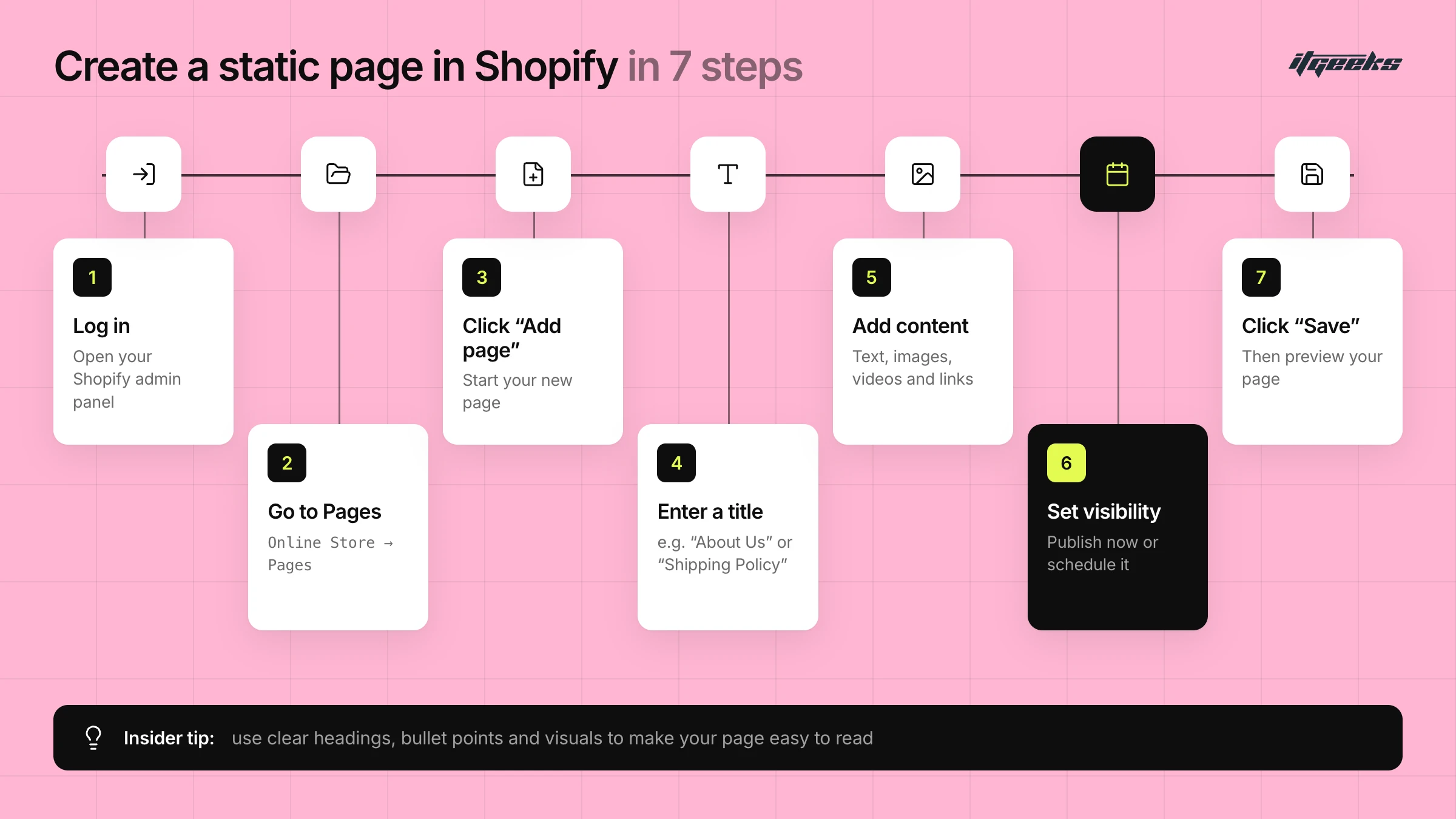
To create a static page on Shopify, go to Online Store → Pages in your admin, click Add page, enter a title and content, choose whether the page is Visible or Hidden, and click Save. Then add the page to a menu so shoppers can find it.
Creating and customizing static pages on Shopify is a simple yet crucial step in building a professional and engaging online store. Whether you’re setting up an About Us, Contact, FAQ, or Privacy Policy page, Shopify provides intuitive tools to get the job done. Let’s dive into a step-by-step guide to help you create and customize these pages effortlessly!
1. Step-by-Step Guide to Creating a Static Page in Shopify
Follow these easy steps to create a new static page on Shopify (menu names as of October 2026):
Step 1: Log in to your Shopify admin panel
Step 2: Navigate to Online Store → Pages
Step 3: Click "Add page"
Step 4: Enter a title (e.g., "About Us," "Shipping Policy")
Step 5: Add content using Shopify’s built-in rich text editor (text, links, tables, images, videos)
Step 6: Select visibility settings: Visible publishes the page when you save; Hidden keeps it off your store, and you can set a publish date and time from the calendar icon
Step 7: Click "Save" and preview your page
Insider Tip: Use clear headings, bullet points, and visuals to make your page easy to read and engaging!
Source: Shopify Help Center: Creating and editing pages.
2. Customizing Pages with Shopify Themes and Liquid Code
Want to take your static pages to the next level? Shopify themes and Liquid code allow deeper customization.
Using Shopify Themes:
Go to Online Store → Themes → Customize
Edit page layouts, fonts, colors, and sections without coding
Use the theme editor’s drag-and-drop functionality
On a page’s details screen, use the Theme template drop-down to give that page a different layout, such as a separate template for FAQ or landing pages
Not sure your theme can do this? Our guide on choosing the right Shopify theme covers what to look for.
Using Liquid Code (For Advanced Customization):
Edit page templates by navigating to Online Store → Themes → Edit Code
Online Store 2.0 themes use a JSON template (page.json) that references a section, so HTML or Liquid goes in that section. Older themes may use page.liquid to control content structure
Add dynamic elements such as metafield or metaobject content, or custom sections
The best way is to get help from experts from the Shopify Partner Directory.
This can make your static pages feel more personalized and engaging.
Shopify makes it easy to create and manage static pages, but customizing them strategically ensures they enhance your brand image, improve user experience, and boost conversions.
If you need basic pages, Shopify’s built-in editor works well.
For advanced layouts, try expert Shopify website development help.
By optimizing your static pages, you’ll build a strong foundation for your online store, one that attracts, informs, and converts visitors effortlessly.
3. Add Your Page to Navigation and Set Its Search Listing
Publishing a page doesn’t make it easy to find. Two quick steps finish the job:
Add it to a menu: Go to Content → Menus and add the page to your main or footer menu. Note that deleting a page also deletes any menu item linked to it.
Edit the search listing: Open the page from Online Store → Pages, click the pencil icon in Search engine listing preview, then edit the page title, meta description and URL handle. If you change a URL, the old address redirects to the new one by default.
Optimizing Static Pages for SEO and Conversion
Static pages on Shopify are more than just informational: they play a vital role in SEO, user engagement, and conversion optimization. Whether it’s your About Us, FAQ, Contact, or Blog pages, optimizing them ensures they rank well on search engines and guide visitors toward taking action.
Here’s how to structure, optimize, and enhance your Shopify static pages for maximum impact.
1. Best Practices for Structuring Content
A well-structured page improves readability, engagement, and SEO. Follow these guidelines:
Use Clear Headings & Subheadings (H1, H2, H3, etc.): Helps both users and search engines understand the content.
Keep Paragraphs Short & Scannable: Avoid large blocks of text; break content into bite-sized sections.
Use Bullet Points & Lists: Makes information easy to digest.
Include High-Quality Images & Videos: Engaging visuals keep visitors interested.
Ensure Consistent Branding: Maintain a uniform design, font style, and color scheme across all pages.
Example Structure for an "About Us" Page:
H1: About [Your Brand Name]
H2: Our Story
H2: Our Mission & Values
H2: Meet the Team (with images)
H2: Why Choose Us (with testimonials or USPs)
Google’s guidance on people-first content is a useful test for these pages: make clear who is behind the store, and write for shoppers first, not for search engines.
2. SEO Tips: Keywords, Meta Descriptions & Internal Linking
To rank higher on Google, apply these SEO best practices:
Use Relevant Keywords:
Identify target keywords your audience searches for (e.g., “Shopify Shipping Policy,” “Best Eco-Friendly Clothing Store,” etc.).
Naturally incorporate them into your headings, paragraphs, and image alt texts.
Write Compelling Meta Titles & Descriptions:
Your meta title should be concise and keyword-rich (e.g., "About Us | [Brand Name] - Our Story & Mission").
The meta description should be engaging and under 160 characters to encourage clicks. Shopify warns that titles over 70 characters and descriptions over 160 characters may be cut off. Google has said there is no fixed length limit, that snippets are truncated to fit the device, and that it may use text from the page instead.
Internal Linking:
Link to other relevant pages on your site (e.g., the FAQ page in the Shipping Policy).
Improves SEO rankings and keeps visitors exploring your store longer.
Example Meta Description for a Shipping Policy Page:
Wondering about delivery times and return policies? Check out our Shipping & Returns page for hassle-free shopping at [Brand Name]!
3. Adding CTAs to Drive Conversions
Your static pages aren’t just for information. They should also guide visitors toward action!
Use Clear & Actionable CTAs
Examples:
“Shop Now” (Homepage)
“Contact Us for More Info” (Contact Page)
“Read Our Blog for Expert Tips” (Blog Page)
Strategic CTA Placement
Place CTAs above the fold (visible without scrolling) and at the end of the page.
Use buttons instead of plain links for better visibility.
Example CTA for an FAQ Page:
"Still have questions? Contact our support team now!" [Button: Contact Us]
Want help turning page traffic into orders? See our conversion rate optimization service.
4. Mobile Responsiveness & User Experience
With most online shoppers browsing via mobile, your pages must be fully responsive.
Mobile Optimization Tips:
Use a responsive Shopify theme that adapts to all devices.
Ensure the text is readable without zooming.
Optimize images & videos to load fast.
Keep buttons large enough for easy tapping.
Test Mobile Responsiveness:
Run the page through Google PageSpeed Insights, which reports mobile performance, and check it on a real phone.
Google retired its standalone Mobile-Friendly Test, the Search Console Mobile Usability report and the Mobile-Friendly Test API in December 2023 (Search Engine Land). Lighthouse in Chrome DevTools covers many of the same checks.
Optimizing your static pages isn’t just about looking good. It’s about enhancing user experience, improving SEO, and increasing conversions.
Quick Recap:
Structure pages properly with headings, lists, and visuals.
Boost SEO with keywords, meta descriptions, and internal links.
Add CTAs to encourage action and engagement.
Ensure mobile-friendliness for seamless browsing.
By refining your static pages, you turn them into powerful assets that drive traffic, build trust, and convert visitors into loyal customers.
Common Mistakes to Avoid When Creating Static Pages on Shopify
Even the best Shopify stores can lose potential customers due to poorly optimized static pages. From SEO oversights to cluttered designs, small mistakes can hurt your store’s performance, user experience, and credibility. Here are some common pitfalls to avoid when setting up your static pages.
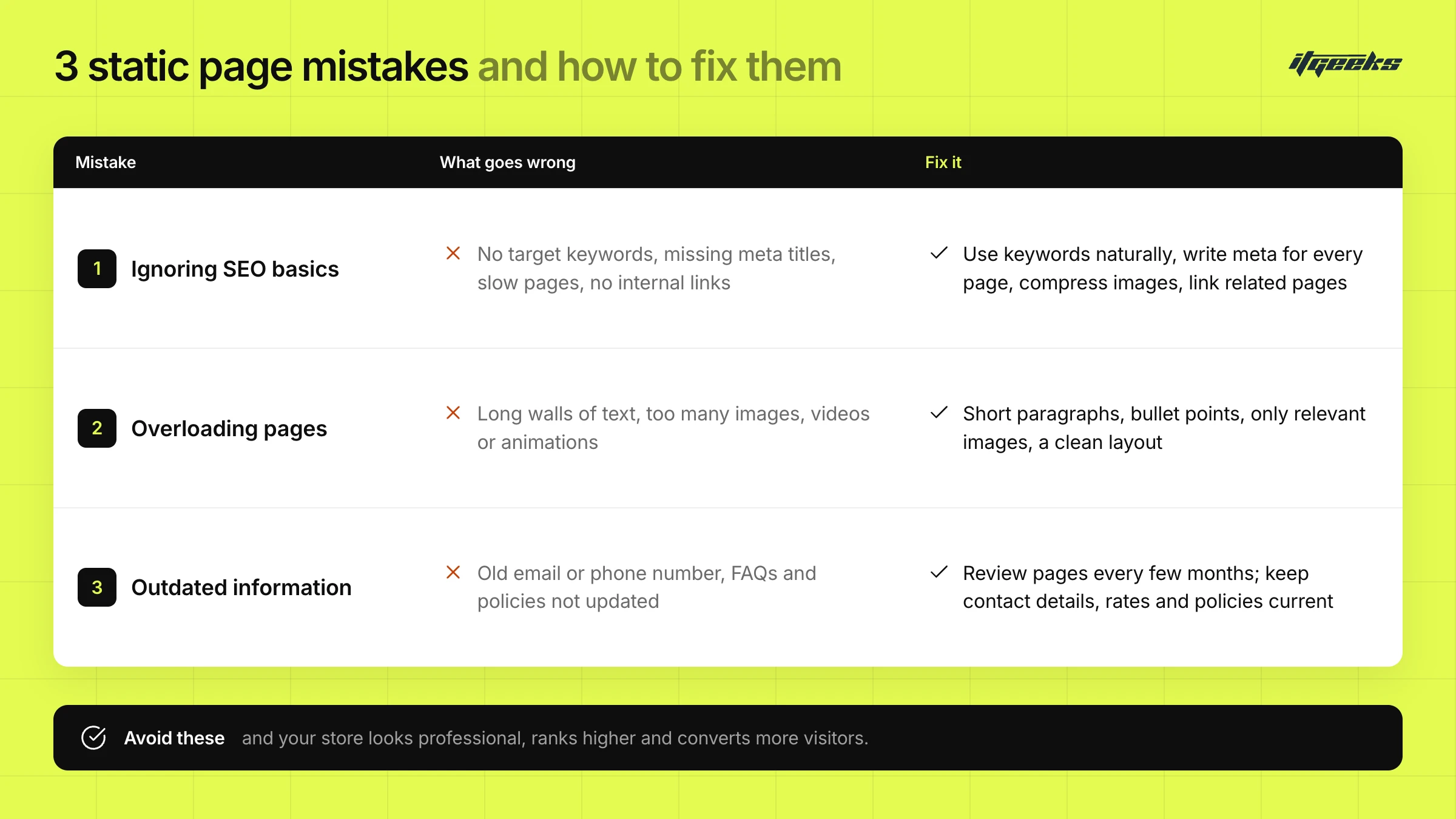
1. Ignoring SEO Basics
A well-designed page won’t bring in traffic if search engines can’t find it. Many store owners neglect basic SEO principles, which can lower visibility on Google.
Common SEO Mistakes:
Not using target keywords in headings, text, and image alt tags.
Forgetting to write SEO-friendly meta titles & descriptions.
Not optimizing for fast page speed (large images, unnecessary scripts).
Ignoring internal linking helps search engines understand your site structure.
Fix It:
Research high-impact keywords and use them naturally.
Write a compelling meta title & description for each page.
Compress images and remove unnecessary elements that slow down loading time.
Link to related pages within your store (e.g., FAQ page linking to Shipping Policy).
Example: Instead of a generic "About Us" title, optimize it with keywords like:
"About [Your Brand] | Sustainable Clothing & Ethical Fashion"
2. Overloading Pages with Too Much Text or Too Many Images
Too much content can overwhelm visitors, making them leave your store without taking action.
Common Issues:
Long walls of text without proper breaks.
Excessive images or videos lead to a slow page speed.
Too many animations or design elements distract from key content.
Fix It:
Use short paragraphs, bullet points, and headings for better readability.
Include only high-quality, relevant images that add value.
Prioritize a clean, uncluttered layout to guide visitors naturally.
Example: Instead of a long company history on your About Us page, keep it concise:
Who are you?
What do you offer?
Why should customers trust you?
3. Failing to Update Important Information Regularly
Outdated pages can mislead customers, harm credibility, and cause frustration. Imagine a visitor checking your Shipping Policy and finding old rates or expired offers!
Common Mistakes:
Contact page with an old email or phone number.
The FAQ page is not updated with recent policies or changes.
The About Us page is missing new achievements or updates.
Fix It:
Set a reminder to review static pages every few months.
Ensure that contact details, shipping rates, and return policies are always current. If you use automated policies in Settings → Policies, Shopify keeps them in sync with related store settings, but still read them after any change.
Keep your About Us page fresh by updating milestones, new partnerships, or customer testimonials.
Regular page reviews fit naturally into a wider routine. Our Shopify maintenance handbook shows how to build one.
By avoiding these mistakes, your Shopify store will look professional, rank higher, and convert more visitors into customers!
Final Thoughts & Next Steps
Static pages are the foundation of a successful Shopify store. From improving SEO to enhancing user experience and conversions, well-optimized static pages can make a significant difference in how your store performs.
Key Takeaways:
Static pages matter: They shape your brand’s credibility and user experience.
Know the terms: A static page is fixed content, a static section is a theme building block, and static site generation is a headless approach.
SEO optimization is essential: Use keywords, meta descriptions, and internal links.
Keep pages clear and concise: Avoid cluttered layouts and excessive content.
Regular updates are a must: Ensure your policies, FAQs, and contact info stay current.
Strong CTAs drive conversions: Guide visitors toward meaningful actions.
Mobile-friendliness is non-negotiable: Optimize pages for all devices.
Next Steps: Time to Optimize!
Now that you know the importance of static pages, take action:
Review Your Existing Pages: Identify areas that need improvement.
Optimize for SEO & Conversions: Implement best practices from this guide.
Test Your Pages on Mobile & Desktop: Ensure a seamless experience.
Update Policies & Information Regularly: Stay relevant and credible.
Monitor Performance: Use tools like Google Analytics & Shopify’s SEO features to track improvements.
Additional Resources for Mastering Shopify Store Development
Want to take your Shopify store to the next level? Here are some helpful resources:
Shopify Help Center: Official documentation for everything Shopify.
Google PageSpeed Insights: Check your store’s speed and performance.
Yoast SEO Guide for Shopify: Improve your store’s SEO ranking.
Shopify Theme Customization Guide: Learn how to customize your pages with Liquid and themes.
Free Shopify SEO Checklist: A step-by-step guide to ranking higher on search engines.
Creating and editing pages (Shopify Help Center): The official steps for adding and publishing pages.
By following these steps and continuously refining your static pages, you’ll build a strong, high-converting Shopify store that attracts customers and boosts sales.
Start optimizing today, and watch your Shopify store grow!
Need Expert Help? Contact ITGeeks!
If you ever get stuck while optimizing your Shopify store, ITGeeks is here to help! As a trusted Shopify Platinum Partner, we specialize in store migration, custom development, SEO optimization, and Shopify theme customization. Let our experts take care of your Shopify needs while you focus on growing your business. You can also explore our Shopify experts for hire or contact our team directly.
Get in touch today to elevate your Shopify store to the next level!